 LUMIERE
Learn Lumiere, one screen at a time.
Every chapter shows the real app. Hover or tap a numbered point, or press Play to walk through a screen step by step.
The camera screen
Lumiere opens straight to the camera. Everything you need for a great shot is on one screen, and the preview itself is a control. Start in Essential and switch to Pro whenever you want the full toolkit.
Gestures
The basics need no menus. Touch the live image directly.
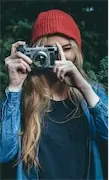

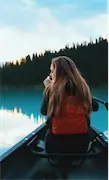
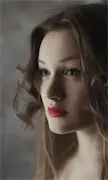
 AE/AF LOCK

Capture modes
Tap a mode, or swipe across the mode row above the shutter.
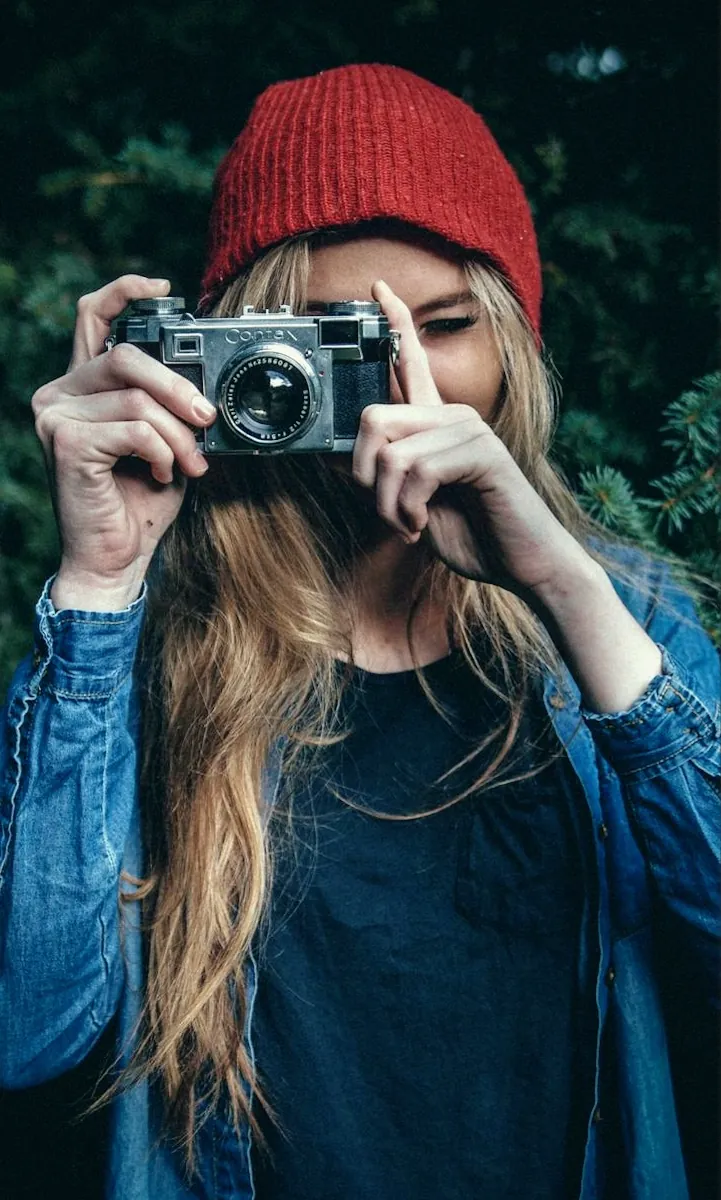
Stills up to 48 MP. The shutter also runs the self-timer, Night mode, Long Exposure and Multi-shot.
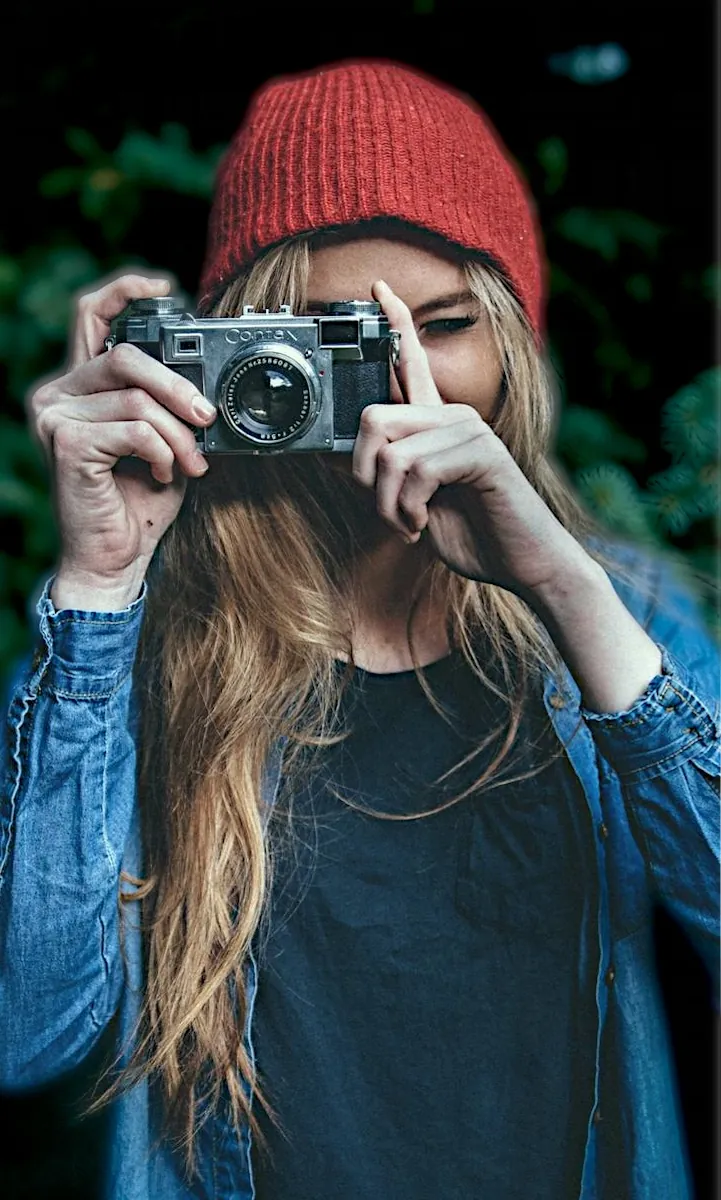
Live background blur on any subject, with an aperture dial and studio or golden lighting.
HD, 1080p or 4K at 24, 30 or 60 fps. Choose them with the RESOLUTION and FRAME RATE chips.
Cinemagraph loops. Tap to start, tap again to finish. Long-press a style for details.
Live styles
- Spotlight: center of frame alive, edges frozen and vignetted.
- Ribbon: a center band moves while top and bottom hold still.
- Cinema: a clean full-frame loop with cinematic tone.
- Loop: the whole frame plays forward, then reverses.
Self-timer & multi-shot
- Timer: Off, 3, 10 or 30 seconds from the top bar.
- Night mode shows HOLD STEADY / STABILIZED while it captures.
- Long exposure (Pro tools): frames every 1, 2, 5 or 10 s, then STITCHING LONG EXPOSURE.
- Multi-shot: 4 aligned frames merged (MULTI-SHOT n/4).
Filters & looks
Tap Looks on the camera to open Filters & looks, or just swipe the viewfinder to step through filters. Thumbnails render live from your own frame, so you see every look on your shot before you take it.
AI Pick & AI Pickup
AI Pick chooses a look for the scene. In Pro, AI Pickup shows four options, each with a reason like “Built for neon nights” or “Flattering skin tones”.
Match Photo
Tap MATCH PHOTO and choose any picture. Lumiere builds a live filter called My Match from its tones and colors and keeps it for next time.
Looks: Golden Hour, Digicam, Cinematic
Relighting effects that find your subject. They stack on top of any filter and work on video too. Tap RESET to turn them off.
Intensity
The slider at the top of the panel sets how strong the filter is, from 0 to 100%.
Pro controls
Tap ESSENTIAL in the top bar to switch to PRO. A readout row appears (WB, FOCUS, SHUTTER, ISO, EV); tap any value to open Camera controls. Light becomes Tools, which opens the Camera tools drawer.
Camera tools
- Histogram, Focus peaking, Grid & level (long-press for Rule of Thirds, Golden Ratio, Crosshair and Horizon Level).
- AI opens AI Pickup.
- More tools: Long exposure, Multi-shot and Live tune (Texture, Structure, Dehaze plus XY pads).
Processing & format
- NATURAL minimal processing, STANDARD Apple processing, RAW fast Bayer, ZERO pure sensor data.
- Formats: JPEG, HEIF, DNG RAW, ProRAW, RAW+HEIF. Sizes 12, 24, 48 MP.
- Aspect: 4:3, 16:9, 1:1, 1.85:1, 2.39:1, Full.
Manual exposure
- Shutter from 1/8000 to 1 s with AUTO / MANUAL.
- ISO: “Auto adjusts ISO and shutter speed for you.”
- White balance presets AWB, SUN, CLOUD, SHADE, BULB, FLUO, FLASH, or 2000–10000 K.
- EV ±3 (called Brightness in Essential).
Video options (Pro)
- The … menu: Stabilization (Off, Stable, Gimbal) and Codec (H.264, H.265, ProRes, ProRes HQ).
Portrait mode
Switch to PORTRAIT and Lumiere blurs the background behind people, pets or objects live. Its controls bar sits above the mode row.
Choose the subject
The subject chip tells you what's happening: AIMING PINNED ALL SUBJECTS or NO SUBJECT · TAP TO PIN. Tap to pin, long-press to add or remove, double-tap to clear.
Aperture dial
Pick how much blur: PORTRAIT (strongest), NATURAL, SUBTLE or SHARP. BLUR turns it off entirely.
Studio light
Under LIGHTING › STUDIO, choose a color temperature (3K, 4.5K, 5.5K, 6.5K, 7.5K, 9K) and shape it with POWER and SPREAD.
Golden light & Sync Sun
Under LIGHTING › GOLDEN, tap SYNC SUN to match the sun's real position from GPS and compass (status: SYNCED TO SUN). Fine-tune GLOW, ANGLE and WARMTH.
Photo editor
Open any photo from the Gallery and tap Edit. Five tools run along the bottom. Pinch to zoom up to 5×, and press and hold the photo to see the original.
Crop
Rotate left or right, Straighten ±45°, and presets Free, Original, 1:1, 4:3, 3:2, 16:9 and 9:16.
AI
Auto Enhance analyzes Scene, Faces, Exposure, Range, Noise, Color, Highlights and Shadows, then improves the photo. Re-Analyze runs it again.
iOS 18.1 or laterRetouch
Select the Subject or Background automatically, or paint with Brush / Eraser. Then adjust just that area: Brightness, Saturation, Contrast, Warmth, Sharpness.
Adjust
- LOOKS: Golden Hour, Digicam, Cinematic with their own sliders.
- LIGHT, COLOR (with an 8-band Color Mixer), DETAIL, TUNE, FX.
- NATURE: sky and foliage. BORDER: width, zoom and 10 colors.
Filters
Every camera look, with Intensity, category chips, None and AI Pick (“Chooses a filter and look for this photo”).
Saving & sharing
Edits are saved with each photo, so you can come back later. Share renders at full resolution and opens the share sheet, where you can save it, send it or post it. The … menu has Undo, Auto enhance, Show original and Reset All Edits.
Video editor
Open a video from the Gallery and tap Edit. Four tabs cover everything from trimming to color.
Gallery
Tap the thumbnail next to the shutter. The Gallery shows your whole photo library, newest first, with badges for LIVE, PORTRAIT, HDR, VIDEO and the file format.
Settings & themes
Tap the gear in the top-left corner of the camera.
Apple Watch remote
Open Lumiere on your iPhone, then open it on your Apple Watch. The watch shows a live preview and controls the camera from across the room.
Siri, Shortcuts & more
Lumiere is ready even before you open it.
Siri phrases
Shortcuts actions
Set Zoom, Flash, Self-Timer, Exposure, Aspect Ratio, Grid, Photo Processing and Video Format; Set Camera Filter (with strength), Pick Filter for Scene, Turn Camera Feature On or Off, and Get Camera Settings.
Photo actions
Apply Filter to Photo, adjust exposure, saturation and warmth, rotate, favorite or hide, all from Shortcuts. Siri understands “this photo” from what's on screen.
iOS 27Lock Screen & Control Center
Add the Lumiere Camera control to Control Center or the Lock Screen to jump straight into Lumiere.
iOS 18 or laterCamera Control & buttons
Pressing Camera Control fires the shutter, exactly like the on-screen button. Its slide gesture adjusts exposure.
Quick actions
Long-press the Lumiere icon: Photo Editor, Long Exposure, HQ Mode, Video, Start Recording, Night Mode.
Edit in Lumiere
In Photos or any app, tap Share › Edit in Lumiere to open a photo or video in the full editor.
Voice Commands
Turn on Voice Commands in Settings › Capture Assist, then say “photo”, “picture”, “take photo” or “cheese”.
Best Light alerts
Settings › Capture Assist › Best Light Alerts notifies you when golden hour and blue hour begin. Needs location and notifications.
FAQ
Does Lumiere upload my photos anywhere?
No. Lumiere has no servers, no account and no networking code. Everything, including AI features, runs on your iPhone. See the privacy policy.
What's the difference between Essential and Pro?
Essential keeps the screen simple: frame, choose a look, shoot, with a Light control for brightness. Pro adds the readout row (WB, focus, shutter, ISO, EV), the histogram, manual exposure and the Tools drawer. Switch with the pill in the top-left, or in Settings › Camera layout.
Is LIVE the same as Apple's Live Photos?
No. LIVE creates cinemagraphs, looping videos where part of the frame moves (Spotlight, Ribbon, Cinema or Loop). They save as videos to your library.
Why can't I pick ProRAW, 48 MP or ProRes?
These depend on your iPhone's hardware. NATURAL and ZERO processing are limited to 12 MP HEIF or JPEG, and RAW options are hidden in Portrait mode. ProRes needs iPhone 13 Pro or later.
How do I make my own filter?
Open Filters & looks, tap MATCH PHOTO and pick a photo whose color you love. Lumiere creates “My Match” and saves it for next time.
Are my edits permanent?
Edits are saved alongside each photo in Lumiere, so you can reopen and keep adjusting. Your original stays untouched. To keep a finished version, tap Share and choose Save Image or another destination.
The Apple Watch says “Open Lumiere on iPhone”.
The remote needs Lumiere running on your iPhone. Bring the camera to the front, keep Bluetooth on, and the preview appears within a second or two.
How do I change the theme or app icon?
Settings › Appearance. Choose one of eight themes, then an icon. “Auto” makes the Home Screen icon follow your theme, and the Apple Watch follows along too.
A video didn't save. Can I get it back?
Lumiere keeps recordings until Photos confirms the import. If one fails, Settings › Video shows “Save recovered recordings”.
My iPhone gets warm while recording.
Long 4K or ProRes recording is demanding. Lumiere shows a thermal chip when the phone runs hot. “Efficient Preview” and “Thermal Throttling” in Settings › Performance help keep things cool.
Text and buttons are too small.
Turn on Larger Controls in Settings › Interface for bigger text and touch targets across the app. Lumiere also respects your iPhone's text size.
Something isn't working.
Tell us! The bug report form builds a detailed report in a few seconds.